


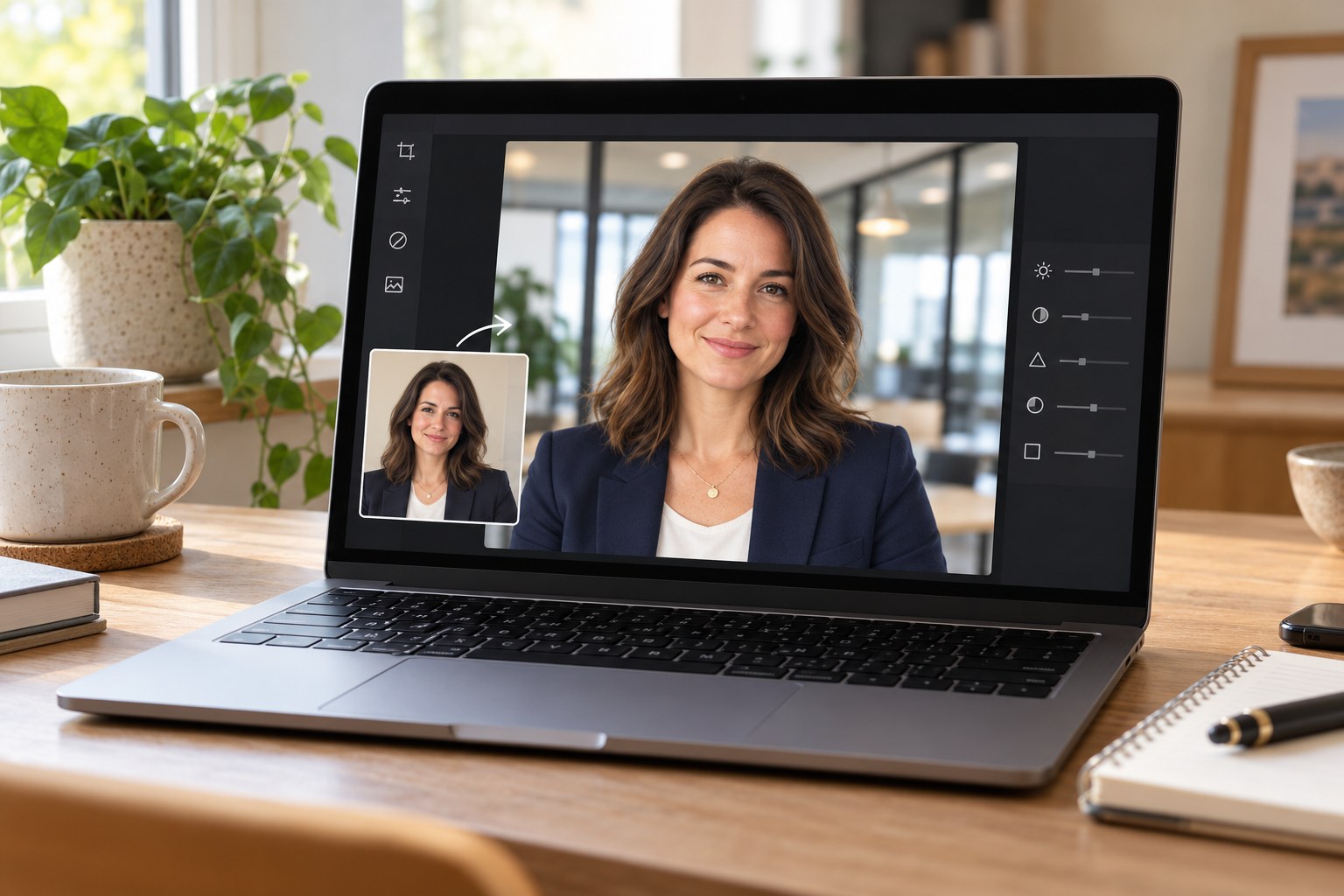
Plenty of us now work from kitchen tables, spare rooms and busy cafés, yet we still need profile pictures that look polished. Learning how to add office background to photo shots has become a handy skill for remote workers, freelancers and food or lifestyle creators across the UK.
A tidy, professional setting behind you can make a LinkedIn headshot or a speaker bio look more credible, even if the original picture was taken next to the fridge. This guide explains when the technique makes sense, which tools help, and how to keep the result natural rather than obviously edited.
Why an Office Background Matters for Professional Photos
The face is the main focus of a profile photo, but the background also shapes the impression. A cluttered hallway or a pile of washing can distract viewers, while a calm, well-lit workspace keeps attention on the person.
For freelancers pitching to agencies, recipe developers approaching brands, or consultants listing themselves on directories, a consistent professional look helps. It shows that you have taken care with how you present your work, even if you run your business from a flat in Leeds or a cottage in Cornwall.
That does not mean every photo needs a glossy corporate setting. The aim is simply to remove distractions and choose surroundings that suit your professional identity.
Who Benefits From Adding an Office Background to a Photo?
Swapping a background is useful for more than job applications. A range of people can benefit:
- Remote employees who need a matching headshot for company intranets, Microsoft Teams or Slack profiles.
- Freelancers and contractors updating LinkedIn, Upwork, portfolios or personal websites.
- Food and lifestyle creators preparing a businesslike image for media kits and brand pitches.
- Small business owners, including caterers, bakers and café founders, creating “meet the team” pages.
- Event speakers asked to supply a clean headshot at short notice.
In each case, the edited image may appear alongside other portraits, so consistency becomes just as important as individual image quality.
Choosing a Tool to Add Office Background to Photo Images
Background editing once required careful manual selections in desktop software. Today, many editing tools can detect a person, remove the existing backdrop and let you place a different scene behind them.
If you want to add office background to photo files, an online editor can provide a convenient starting point. For print materials or large banners, look for tools that also offer detailed edge controls and high-resolution exports.
Before choosing an editor, check the available export size, any watermark restrictions and how much manual adjustment it allows. A quick automatic result may still need small corrections around hair, glasses and shoulders.
These details matter more than the number of backgrounds available. A simple scene with a clean cutout will usually look more convincing than an elaborate office with rough edges.
Prepare Your Portrait Before Adding an Office Background
A good original photo makes the editing process easier. Before taking your portrait:
- Stand a little away from the wall to reduce heavy shadows.
- Face a window for soft daylight instead of standing beneath a harsh overhead bulb.
- Wear clothing that contrasts with the existing background.
- Use the highest practical image resolution.
- Keep your face in focus and leave enough room around your shoulders for cropping.
If someone can help, try using your phone’s main rear camera. Clean the lens and keep the camera at roughly eye level to avoid an awkward perspective.
Before you add office background to photo portraits, check for motion blur and strong shadows across the face. Background replacement cannot reliably correct every issue in the original photograph.
How to Add Office Background to Photo Portraits Naturally
Start by uploading your portrait to the editor and removing the existing background. Inspect the automatic selection before choosing the replacement scene.
Next, select an office backdrop with a camera angle and lighting direction that resemble your original photo. Position the portrait carefully, keeping the head and shoulders at a believable scale.
Then adjust the background’s brightness, colour and blur to bring the two images together. Avoid making the office sharper or more visually prominent than the person.
Finally, check the result at both full size and a small profile-picture size. An edit that looks convincing on a large screen may feel too busy when displayed as a small circular thumbnail.
Match Lighting and Perspective in Your Office Background
Mismatched light is one of the clearest signs of an edited background. If your face is strongly lit from the left but the office scene suggests a strong light source on the right, the result can feel inconsistent.
Choose a scene whose light direction and colour temperature roughly match your portrait. Warm lighting can suit wood-toned interiors, while cooler daylight often works with bright offices and neutral walls.
Perspective matters too. A portrait taken at eye level should sit against a background photographed from a similar height. Look at desks, doorways and window frames to judge whether the angle feels believable.
A gentle background blur can help keep attention on your face. Use shadows carefully, however. A strong shadow immediately behind your shoulders will look misplaced if the office wall appears several metres away.
Refine Photo Edges and Export at the Right Resolution
After removing the original background, zoom in around stray hairs, ears, glasses and clothing. Check the gaps between the arms and body for leftover fragments.
Use the editor’s refine, erase or restore controls where available. Preserve natural hair detail without leaving a visible outline from the old background.
Image quality should also be consistent. A sharp portrait placed over a pixelated office scene will look uneven. Choose a background with enough detail for the intended output, and avoid enlarging a small image excessively.
JPEG is suitable for most finished profile pictures and website images. PNG is useful when you need a transparent cutout for later editing.
Review the exported file before uploading it. Compression can reduce fine detail or introduce rough edges that were less noticeable in the editor.
Keep Your Edited Office Portrait Honest and Consistent
Choose a neutral office background that supports your professional image. Avoid recognisable company branding or settings that could imply an affiliation you do not have.
For team portraits, use a similar background style, crop and colour treatment for everyone. This helps a website’s staff page feel cohesive, even when the original photographs were taken in different locations.
Creators can apply the same approach across media kits, newsletters and speaker profiles. A consistent portrait makes it easier for people to recognise you across different channels.
Update your photograph when your appearance changes significantly. The finished image should still be a clear and current representation of you.
For more inspiration for your work and everyday life, explore the food, lifestyle and business stories on FEAST Magazine UK.
Conclusion
Learning how to add office background to photo images can help remote workers, freelancers and creators build a consistent professional presence.
Start with a clear, well-lit portrait, choose an office scene with matching light and perspective, and refine the edges before exporting. Keep the background subtle and believable so your face remains the focus.
With a little care, the finished photograph can work across your professional profiles, website and media kit.